Disk full at 2 a.m.: a calm, systematic triage
/var hits 100% on a production app server. A repeatable sequence to find the cause, free space safely, and stop it happening again — without deleting the wrong thing.
Scenario-based write-ups. Each post starts with a real situation (anonymised), then walks through diagnosis, the fix, and what I'd do differently.
/var hits 100% on a production app server. A repeatable sequence to find the cause, free space safely, and stop it happening again — without deleting the wrong thing.
An application admin can log in with an SSH key but sudo rejects them. The cause is in PAM's account phase, not authentication — here's how to prove it and fix it properly.
Registration drift is quiet until a licence true-up or an unpatched server finds it for you. A simple monthly routine with Red Hat Satellite and hammer keeps the inventory accurate.
/var hits 100% on a production app server. A repeatable sequence to find the cause, free space safely, and stop it happening again — without deleting the wrong thing.
Full filesystems are among the most common Linux incidents, and among the easiest to make worse. The instinct is to start deleting. The goal of this runbook is to replace instinct with a short, safe sequence.
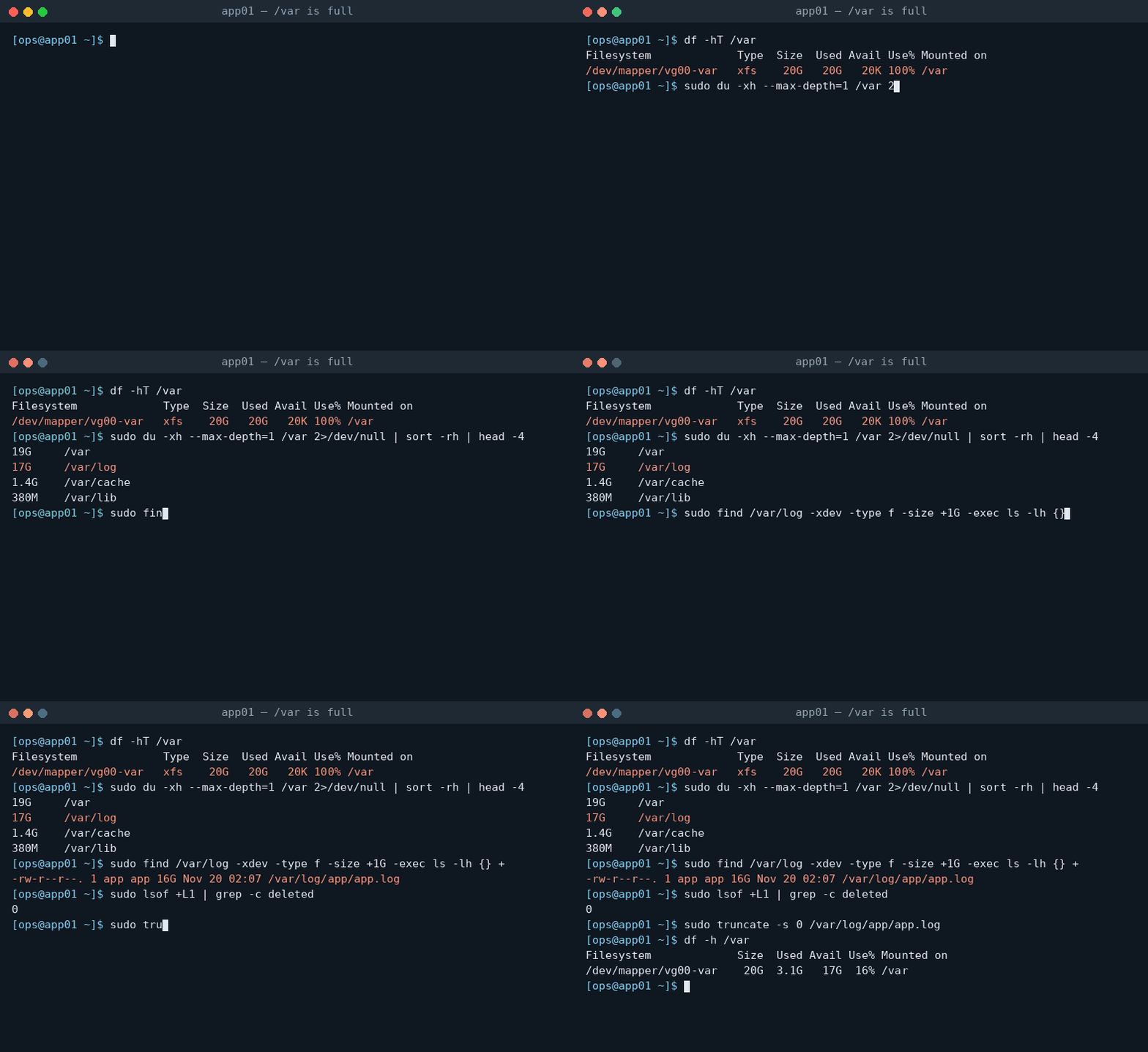
df -hT /var        # space
df -i  /var        # inodes — a filesystem can be "full" with free space left
If IUse% is 100% and space is not, you’re hunting millions of small files (session files, mail queue, cache), not one
big one. That’s a different search: sudo find /var -xdev -type f | cut -d/ -f2-4 | sort | uniq -c | sort -rn | head.
sudo du -xh --max-depth=1 /var 2>/dev/null | sort -rh | head-x keeps du on one filesystem, so a mounted /var/lib/docker or NFS share doesn’t pollute the answer. Drill down one
level at a time until you reach the culprit, then list large files directly:
sudo find /var/log -xdev -type f -size +1G -exec ls -lh {} +If df says full but du can’t find the space, a process is probably holding a deleted file open. The space isn’t
released until that file descriptor closes.
sudo lsof +L1 # open files with link count < 1, i.e. deletedThe fix is to restart (or signal) the owning process — or, if you can’t restart it yet, truncate through its
descriptor: : > /proc/<pid>/fd/<fd>.
Safer options, in order of preference:
sudo sh -c 'tail -n 50000 app.log > /tmp/app.log.tail' before truncating.sudo truncate -s 0 /var/log/app/app.log — the process keeps its file handle and carries on.sudo lvextend -r -L +5G /dev/vg00/var (-r grows XFS online in the same step).In this scenario the application wrote to a log that wasn’t covered by logrotate. The permanent fix was a policy file:
# /etc/logrotate.d/app
/var/log/app/*.log {
    daily
    rotate 14
    maxsize 1G
    compress
    delaycompress
    missingok
    notifempty
    copytruncate
}
copytruncate is used because this application can’t reopen its log on a signal. If yours can, prefer create plus a
postrotate reload — copytruncate can lose a few lines written during the copy.
Validate before you walk away: sudo logrotate -d /etc/logrotate.d/app (dry run) and then
sudo logrotate -f /etc/logrotate.d/app.
df -h, df -i)du -x, find -size)lsof +L1)rm on open files)An application admin can log in with an SSH key but sudo rejects them. The cause is in PAM's account phase, not authentication — here's how to prove it and fix it properly.
This is one of those tickets that sounds like “user forgot password” and isn’t. The user’s password is correct. Their SSH key works. And yet:
$ sudo -i
[sudo] password for appadmin:
You are required to change your password immediately (password expired)
sudo: Account or password is expired, reset your password and try againsudo doesn’t check passwords itself — it hands the job to PAM (Pluggable Authentication Modules), using the
service file /etc/pam.d/sudo. PAM runs separate management groups, in order:
SSH key login skips the password check entirely, and depending on UsePAM and the PAM stack for sshd, may not trip
the same account checks. That’s why “SSH works” is not evidence the account is healthy.
sudo chage -l appadminLast password change : Aug 01, 2026
Password expires : Oct 30, 2026
Password inactive : never
Account expires : never
Minimum number of days between password change : 1
Maximum number of days between password change : 90
Number of days of warning before password expires : 790-day maximum, last changed 1 August — expired on 30 October. Mystery solved for local accounts.
sudo journalctl -t sudo --since "1 hour ago"
sudo grep -E 'appadmin.*(expired|account)' /var/log/secure | tail
Look for pam_unix(sudo:account): expired password — note account, not auth. On SSSD-backed hosts you’ll see
pam_sss(sudo:account) instead, and the expiry comes from the directory, so the fix belongs there, not on the server.
For a human admin account, the clean fix is a controlled reset that forces a change at next login:
sudo passwd appadmin          # set a temporary password via your approved channel
sudo chage -d 0 appadmin      # force change on next login
For a service account that only runs automation, the better long-term fix is to remove password-based sudo
altogether: key-based login, a narrowly scoped NOPASSWD rule for the specific commands it runs, and a locked password
(passwd -l).
Expiry is predictable, so it should never be an incident. A small daily check, run from cron or your configuration management tool, can report accounts expiring soon:
#!/usr/bin/env bash
# expiring-accounts.sh — list local accounts whose password expires within N days.
set -euo pipefail
DAYS=${1:-14}
today=$(( $(date +%s) / 86400 ))
# /etc/shadow fields: 1=user 3=last change (days since epoch) 5=max age
sudo awk -F: -v today="$today" -v window="$DAYS" '
  $2 !~ /^[!*]/ && $5 != "" && $5 < 99999 && $3 != "" {
    left = ($3 + $5) - today
    if (left <= window) printf "%-20s expires in %d day(s)\n", $1, left
  }' /etc/shadow
Feed the output to your monitoring as a low-priority alert, or email the account owners. On SSSD/IdM, query expiry from the directory instead.
sudo failures with a correct password usually live in PAM’s account phase.chage -l and the pam_*(<service>:account) log line give you the answer in under a minute.Registration drift is quiet until a licence true-up or an unpatched server finds it for you. A simple monthly routine with Red Hat Satellite and hammer keeps the inventory accurate.
In a large RHEL estate, registration drift happens quietly. A VM is rebuilt with the same hostname and now appears twice. A server is decommissioned but never unregistered. A rushed build skips registration and never receives patches. None of these break anything on the day — they surface later, during a licence true-up or when a vulnerability scan finds an unpatched host nobody knew about.
Activation keys bind a host to the right organisation, lifecycle environment and content view in one step, so builds don’t depend on someone remembering the right options.
# Install the Satellite CA/consumer package, then register (run on the new host)
sudo rpm -Uvh https://satellite.example.internal/pub/katello-ca-consumer-latest.noarch.rpm
sudo subscription-manager register \
    --org="EXAMPLE_ORG" \
    --activationkey="rhel9-prod"
sudo subscription-manager identity    # confirm registration
Put this in your build template or provisioning playbook so it isn’t optional. On newer Satellite versions, the
global registration command generated from the web UI does the same job with a single curl | bash.
hammer, Satellite’s CLI, makes the export scriptable:
hammer --output csv host list \
    --organization "EXAMPLE_ORG" \
    --fields "Name,Operating System,Lifecycle Environment,Content View,Last Checkin" \
    > "satellite-hosts-$(date +%Y-%m).csv"
Keeping one CSV per month gives you a simple history: you can diff months to see what was added and removed.
Compare the Satellite list with your source of truth (CMDB export, VMware inventory, or aws ec2 describe-instances).
A few lines of shell are enough to find the gaps:
#!/usr/bin/env bash
# reconcile.sh <satellite.csv> <cmdb_hosts.txt>  — hostnames one per line in the second file
set -euo pipefail
[[ $# -eq 2 ]] || { echo "usage: $0 satellite.csv cmdb_hosts.txt" >&2; exit 2; }
tail -n +2 "$1" | cut -d, -f1 | sed 's/\..*//' | tr 'A-Z' 'a-z' | sort -u > /tmp/sat.txt
sed 's/\..*//' "$2" | tr 'A-Z' 'a-z' | sort -u > /tmp/cmdb.txt
echo "== Running but NOT registered (no patches, no entitlement) =="
comm -13 /tmp/sat.txt /tmp/cmdb.txt
echo
echo "== Registered but NOT in CMDB (decommissioned? paying for nothing) =="
comm -23 /tmp/sat.txt /tmp/cmdb.txt
Short hostnames are compared, lower-cased, so APP01.example.internal and app01 match.
| Finding | Typical cause | Action |
|---|---|---|
| No check-in for 30+ days | Host decommissioned or powered off | Confirm, then hammer host delete |
| Same name registered twice | Rebuilt from template | Remove the older record |
| Running but unregistered | Build skipped registration | Register with the correct activation key |
| Wrong lifecycle environment | Built with the wrong key | Move it before the next patch cycle |