sudo stopped working, but the password is right: debugging PAM account expiry
An application admin can log in with an SSH key but sudo rejects them. The cause is in PAM's account phase, not authentication — here's how to prove it and fix it properly.
The scenario
- Situation
- An application admin reports that sudo suddenly fails with an 'expired' message, even though they are typing the correct password and SSH key login still works.
- Environment
- RHEL servers with local service-admin accounts governed by a password-ageing policy; some hosts also use SSSD.
- Goal
- Restore access quickly without weakening the security policy, and stop it surprising people again.
- Outcome
- Root cause identified as password ageing in the PAM account phase; access restored via a controlled reset, and expiry warnings added to monitoring.
This is one of those tickets that sounds like “user forgot password” and isn’t. The user’s password is correct. Their SSH key works. And yet:
$ sudo -i
[sudo] password for appadmin:
You are required to change your password immediately (password expired)
sudo: Account or password is expired, reset your password and try again
Why a correct password isn’t enough
sudo doesn’t check passwords itself — it hands the job to PAM (Pluggable Authentication Modules), using the
service file /etc/pam.d/sudo. PAM runs separate management groups, in order:
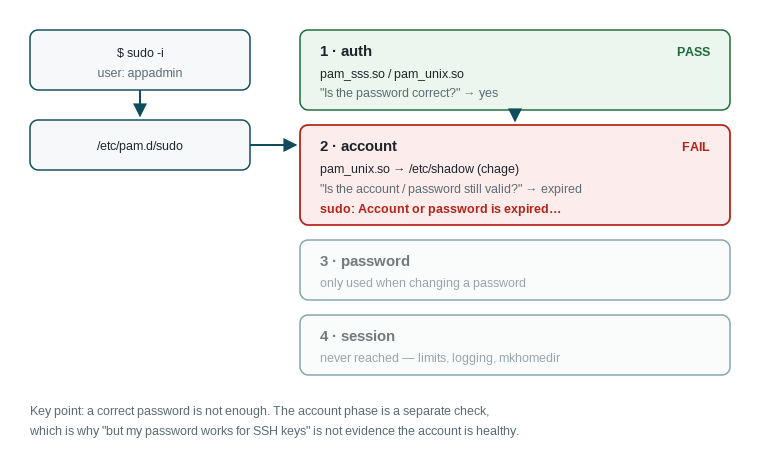
- auth — is this really the user? (password correct → pass)
- account — is this account allowed right now? (expired, locked, outside allowed hours → fail)
- password — used only when changing a password
- session — set-up and tear-down: limits, logging, home directory creation
SSH key login skips the password check entirely, and depending on UsePAM and the PAM stack for sshd, may not trip
the same account checks. That’s why “SSH works” is not evidence the account is healthy.
Step 1 — read the account’s ageing data
sudo chage -l appadminLast password change : Aug 01, 2026
Password expires : Oct 30, 2026
Password inactive : never
Account expires : never
Minimum number of days between password change : 1
Maximum number of days between password change : 90
Number of days of warning before password expires : 790-day maximum, last changed 1 August — expired on 30 October. Mystery solved for local accounts.
Step 2 — confirm it in the logs
sudo journalctl -t sudo --since "1 hour ago"
sudo grep -E 'appadmin.*(expired|account)' /var/log/secure | tail
Look for pam_unix(sudo:account): expired password — note account, not auth. On SSSD-backed hosts you’ll see
pam_sss(sudo:account) instead, and the expiry comes from the directory, so the fix belongs there, not on the server.
Step 3 — fix it without weakening the policy
For a human admin account, the clean fix is a controlled reset that forces a change at next login:
sudo passwd appadmin          # set a temporary password via your approved channel
sudo chage -d 0 appadmin      # force change on next login
For a service account that only runs automation, the better long-term fix is to remove password-based sudo
altogether: key-based login, a narrowly scoped NOPASSWD rule for the specific commands it runs, and a locked password
(passwd -l).
Step 4 — make sure nobody is surprised again
Expiry is predictable, so it should never be an incident. A small daily check, run from cron or your configuration management tool, can report accounts expiring soon:
#!/usr/bin/env bash
# expiring-accounts.sh — list local accounts whose password expires within N days.
set -euo pipefail
DAYS=${1:-14}
today=$(( $(date +%s) / 86400 ))

# /etc/shadow fields: 1=user 3=last change (days since epoch) 5=max age
sudo awk -F: -v today="$today" -v window="$DAYS" '
  $2 !~ /^[!*]/ && $5 != "" && $5 < 99999 && $3 != "" {
    left = ($3 + $5) - today
    if (left <= window) printf "%-20s expires in %d day(s)\n", $1, left
  }' /etc/shadow
Feed the output to your monitoring as a low-priority alert, or email the account owners. On SSSD/IdM, query expiry from the directory instead.
Takeaways
sudofailures with a correct password usually live in PAM’s account phase.chage -land thepam_*(<service>:account)log line give you the answer in under a minute.- Fix with a controlled reset, not by disabling expiry; remove passwords from service accounts entirely.
- Predictable failures should be monitored, not discovered.